How to Activate eSIM on iPhone: Easy Step-by-Step Guide
As an iPhone user, one of the benefits I enjoyed is the ability to use an eSIM. If you use the iPhone XR, XS, and XS, then you can use the esim technology on your device. If you are asking “how to activate esim on iphone” then I gat you covered.
Installing an eSIM and activating it are not always the same thing. This process can also vary depending on your carrier and how the eSIM was issued. In this guide, I will explain how to activate an eSIM on an iPhone and confirm that the new line is working properly.
If you are setting up an eSIM for the first time or preparing to use one while travelling, this guide will walk you through the process.
See also: How Does eSIM Work? A Simple 2026 Guide
How to Activate an eSIM on iPhone
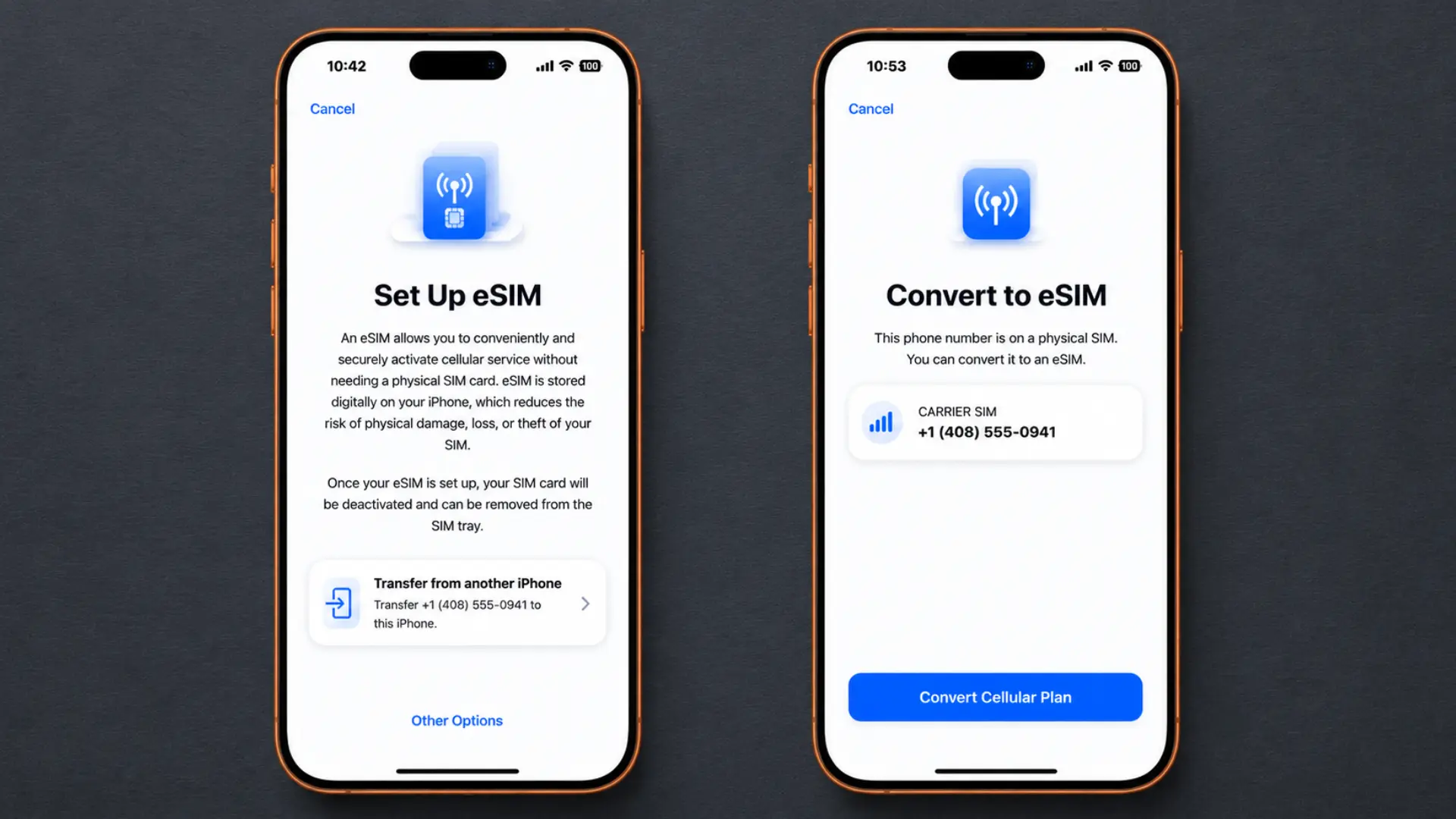
Apple generally supports eSIM on the iPhone XS, iPhone XS Max, iPhone XR, and later models, although availability may vary by country and carrier. Also confirm that your carrier supports eSIM for your mobile plan.
Once you have confirmed compatibility, you can activate your eSIM in a few steps. To set up an eSIM on your iPhone, open the Settings app, tap Cellular, and then tap Add eSIM. If your device displays “Set Up Cellular” instead, select it.
If your eSIM is a global on, irrespective of how you activate it, you much ensure you enable data roaming.
The “Set Up Cellular” screen shows the activation methods available through your carrier. Some of the popular way to activate an eSIM on your iPhone is through:
- QR code,
- Carrier notification,
- Setup link, or
- Carrier app.
- Physical SIM to eSIM
- Manual installation
1. Activate an eSIM With a QR Code
Another way to activate an eSIM is with a QR Code. If your carrier gives you a QR code, open the Camera app or use the iPhone’s camera to scan it.
Tap the Cellular Plan Detected notification, select Continue, and then choose Add Cellular Plan. Enter a confirmation code if required and follow the remaining on-screen instructions.
Alternatively, open Settings, select Cellular, choose Add eSIM, and tap Use QR Code. On iOS 17.4 or later, you may also be able to activate it through a quick link by pressing and holding supported email or browser content and selecting Add eSIM.
PS: Before scanning, double check that the QR code is still valid and not expired; some codes are single-use, so do not delete and reinstall the eSIM unless your carrier instructs you to.
2. Activate an eSIM Through Your Carrier
Some carriers can send the cellular plan directly to your iPhone. If you receive a carrier cellular plan “Ready to Be Installed” notification, tap it and follow the instructions to complete the activation.
3. Activate an eSIM With a Setup Link
Another way to activate eSIM is through an activation link instead of a QR code. Click the link on your iPhone and follow the prompts.
You may see an “Activate New eSIM” notification. Tap “Allow” and continue with the setup. Only open activation links from your carrier or a trusted eSIM provider.
4. Activate an eSIM Using Your Carrier’s App
Some carriers allow you activate your eSIM and set up your mobile service from their mobile app. Once you confirm if your carrier supports that, look for an option to activate your eSIM, and some apps also let you buy or install a data plan during setup.
You may need to verify your account, phone number, or identity. Since the process varies by carrier, follow the instructions displayed in the app. If you use Nosh eSIM, you can check our how to activate eSIM plan support guide.
5. Convert a Physical SIM to an eSIM
As a Nigerian or Ghanaian, you can also convert your physical sim to an eSIM, replacing traditional sim cards while keeping your number. All major network providers in both countries supports this conversion, such as MYN, MTN Ghana, Airtel, Glo, Telecel Ghana, and AT, though local carrier sim restrictions can affect whether it’s available.
You will also visit the telecom’s physical to activate your conversion. Once the eSIM is active, the physical SIM may stop working because the number has been transferred.
6. Activate an eSIM Manually
If your carrier provides manual activation details, open Settings, select Cellular, choose Add eSIM, and tap Enter Details Manually.
Enter the SM-DP+ Address, Activation Code, and any other information exactly as provided. Contact your carrier if you are unsure which details to use.
How to Check if Your eSIM Is Activated
Installing an eSIM does not always mean it is ready to use. To confirm that it has been activated, check that the plan appears in your cellular settings, the line is turned on, and it can connect to the network.
Check That the eSIM Appears in Cellular Settings
Open Settings, select Cellular, and look under SIMs or Cellular Plans. Your eSIM should appear as a separate plan. Tap it to confirm that it is the correct line. You can also label it Personal, Business, or Travel to make it easier to identify.
Make Sure the eSIM Line Is Turned On
Open Settings, select Cellular, tap the eSIM, and enable Turn On This Line. To use it for mobile data, return to Cellular, select Cellular Data, and choose the eSIM.
If you’re using a travel eSIM, verify data roaming is enabled if your provider requires it. If you have two active SIMs, only one can use cellular data at a time. On Nosh, we have Local, and Global eSIMs.
Test the eSIM Connection
Turn off Wi-Fi and open a website or an app that requires internet access on the eSIM’s cellular network. If the eSIM includes voice service, make a test call as well. If mobile data or calls work without Wi-Fi, the eSIM is active.
If it shows No Service or SOS, or mobile data does not work, try the troubleshooting steps below. Successful browsing or calling confirms seamless connectivity on the active line.
What to Do if Your eSIM Won’t Activate
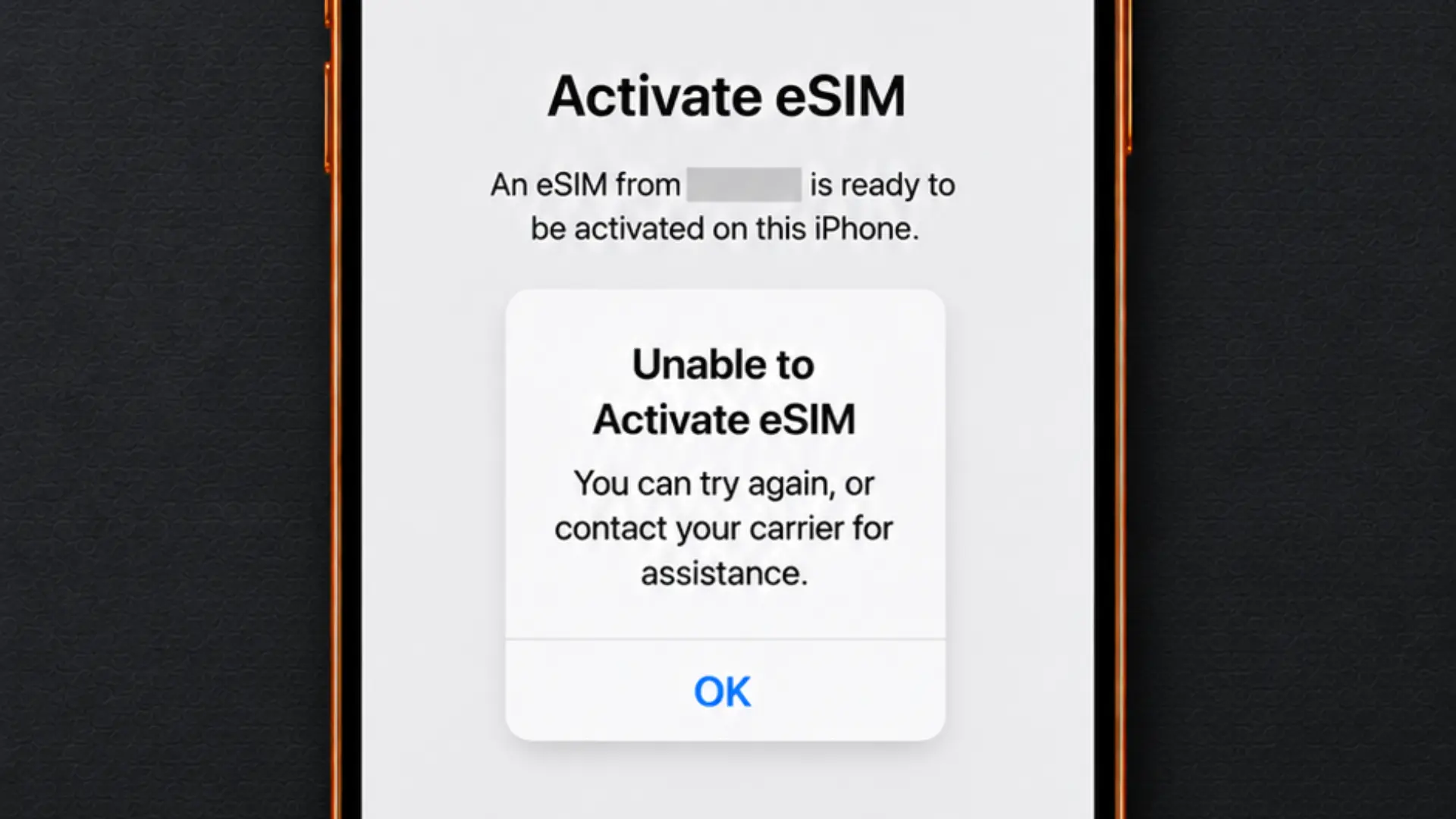
If your eSIM is installed but your iPhone shows No Service, SOS, or cannot connect to mobile data, try these troubleshooting tips before contacting your carrier.
1. Turn Airplane Mode On and Off
2. Check That the eSIM Line Is Turned On
Go to Settings > Cellular and select the eSIM you want to activate. Make sure Turn On This Line is enabled. If it is already on, turn it off, wait a few seconds, and turn it back on.
3. Restart Your iPhone
4. Check Your Internet Connection
Connect your iPhone to a reliable Wi-Fi network. An internet connection is usually required to download and activate an eSIM, so weak or unavailable Wi-Fi may interrupt the process.
5. Check for a Carrier Settings Update
Go to Settings > General > About and wait a few seconds. If an update is available, follow the prompt to install it. Then return to your Cellular settings and check the eSIM again.
6. Update Your iPhone
Make sure your iOS version is up to date, since eSIM functionality and activation options can depend on it.
7. Verify the Activation Details
If you used a QR code, confirm that it came from your carrier and is still valid. If you entered the information manually, check the Activation Code, SM-DP+ Address, and other details carefully.
Avoid repeatedly deleting and reinstalling the eSIM because some QR codes and activation codes can only be used once.
8. Check Compatibility or Contact Your Carrier
Confirm that your carrier supports eSIM for your iPhone model and location. If you use two carriers, open Settings, select General, choose About, and check Carrier Lock to ensure your iPhone is unlocked. If the eSIM still will not activate, also check for a network provider lock or other carrier-side restrictions.
If the eSIM remains inactive, contact your carrier to check your account, coverage, and activation status. Keep your phone number, IMEI, EID, and account details ready.
FAQs About Activating an eSIM on iPhone
Do I need a physical SIM card to activate an eSIM?
No. An eSIM is a digital SIM built into the iPhone, so you do not need to insert a physical SIM card to activate a new eSIM. However, a physical SIM may still be useful if you want to keep an existing line active alongside the eSIM.
Can I activate an eSIM without a QR code?
Yes. Depending on your carrier, you may use carrier activation, a setup link, a carrier app, eSIM Quick Transfer, or manual installation instead of scanning a QR code.
Can I use an eSIM and physical SIM together?
Yes, on compatible iPhone models. You can keep your regular number on the physical SIM while using the eSIM for another number or for mobile data.
How many eSIM plans can I store on an iPhone?
Compatible iPhones can store multiple eSIM profiles, allowing you to switch between plans when needed.
The number of plans you can store and the number that can be active at the same time depend on the iPhone model, iOS version, region, and carrier.
Can I use a physical SIM and eSIM together on an iPhone?
Yes. Compatible iPhones support Dual SIM, allowing you to use a physical SIM and eSIM together. Go to Settings > Cellular > Cellular Data to choose which line handles mobile data.
Conclusion
Activating an eSIM is straightforward once you confirm that your iPhone and carrier support it. Depending on your carrier, you can activate the eSIM using a QR code, carrier activation, a setup link, a carrier application, eSIM Quick Transfer, or manual activation details.
For easy set and activation of eSIM, get yours today, if you haven’t, on Nosh. Nosh support over 140 countries
If the eSIM does not connect, check your internet connection, restart your iPhone, and verify your carrier settings and activation details. If the issue continues, contact your carrier to confirm that the eSIM and cellular plan are active.